Placing the addon settings into Shoptet administration
If your addon has settings that the e-shop operator manages, you can place the settings page directly into the Shoptet administration. The page is displayed in an iframe, and a link to it appears in the administration menu under Connections → your addon name.
Iframe URL integration
- The settings page runs in your environment, at your URL, and must use HTTPS. An
http://URL is not saved. - The page must respond within 60 seconds.
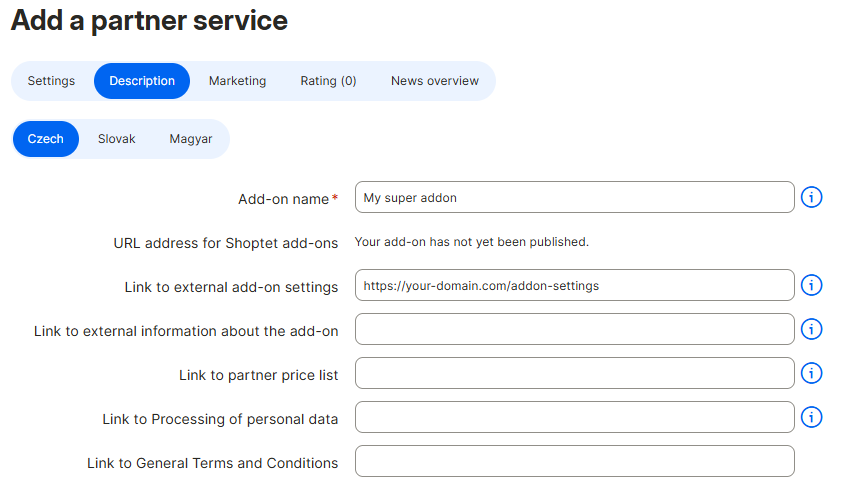
- Enter the settings URL on the Description tab of the addon editor, in the Link to external add-on settings field. The field is set per language, so each language version can point to a different URL. The iframe uses the version for the language of the administration; if the addon has no such language version, the Czech one is used (for example, an administration in English loads the Czech URL).
- The page must allow being displayed in an iframe, so do not send the
X-Frame-Optionsheader. - The iframe does not send the
Refererheader. Identify the e-shop from the placeholders in the URL. - Authenticate the administration user with OAuth. Use the simplified OAuth variant.
The settings URL can contain these placeholders, which are replaced every time the page is opened:
For example: https://your-domain.com/settings?shop=#SHOP_ID#&lang=#LANGUAGE#&code=#OAUTH_CODE#
#OAUTH_CODE# is replaced only if both the URL for user authorization and the Your URL to receive OAuth code fields on the Settings tab of the addon editor contain a valid URL. Otherwise the placeholder stays in the URL as it is, with no error shown.
The settings page can be integrated in two ways:
- Direct URL – the iframe loads your URL exactly as you entered it.
- Proxy pass – the iframe loads a URL on the e-shop domain, and Shoptet calls your URL on the backend.
If the administration detects an ad blocker in the browser, it shows a warning instead of the iframe, asking the user to turn the ad blocker off for the page or add it to the allowed sites.
Direct URL in the iframe
The browser treats your page as a third-party page, so it may not send cookies. Build the settings page so that it works without cookies, and secure repeated calls with a token, for example JWT or Paseto.
Proxy pass
Proxy pass is disabled by default. To enable it for your addon, contact api@shoptet.cz.
With proxy pass, the iframe loads the address https://<e-shop domain>/addon/<addon ID>-<language>/<path>, where <path> is the path and query of your settings URL (after the placeholders are replaced). The domain of your URL is not part of the address. For example, https://my-shoptet-addon.com/settings?code=abc becomes https://eshop.example.com/addon/123-cs/settings?code=abc.
Cookies are passed between calls, except PHPSESSIONID, which is removed. Keep the following in mind:
Session and cookies. Set the SameSite attribute of the session cookie to None, otherwise Chrome does not send it:
session_set_cookie_params([
    'lifetime' => time() + 60 * 60 * 24,
    'path' => '/',
    'domain' => '',
    'secure' => true,
    'httponly' => true,
    'samesite' => 'None',
]);
Asset files. Load all assets (styles, scripts, images) with absolute HTTPS URLs:
<!-- Wrong -->
<link type="text/css" rel="stylesheet" href="/static/style.css">
<!-- Right -->
<link type="text/css" rel="stylesheet" href="https://my-shoptet-addon.com/static/style.css">

<!-- Wrong -->
<script src="/static/main.js"></script>
<!-- Right -->
<script src="https://my-shoptet-addon.com/static/main.js"></script>

<!-- Wrong -->
<img src="/img/logo.png" alt="Logo" />
<!-- Right -->
<img src="https://my-shoptet-addon.com/img/logo.png" alt="Logo" />
Redirects. Inside the addon, redirect only with relative URLs. An absolute URL leaves the proxy, and the cookies and session can be lost:
// Wrong
header('Location: https://my-shoptet-addon.com/step2.php');
header('Location: /path/page.php');

// Right
header('Location: step2.php');
header('Location: foo/bar.php');
header('Location: ?page=step2');
Resizing the iframe
The administration sets the iframe height to fit its content with the iframe-resizer library (version 4). For this to work, load the library's content-window script on every page of your settings:
<script src="https://cdn.jsdelivr.net/npm/iframe-resizer@4.1.1/js/iframeResizer.contentWindow.min.js"></script>
The library reads the page height from the body element, so do not give body a fixed height:
body {
    height: auto;
}
Page design
The administration UI components and styles are available as the npm package @shoptet/ui; you can preview them at react.shoptet.cz. Use the package stylesheet @shoptet/ui/index.css, or import index.less if you build your own styles. Keep the package up to date.
Following the administration design and dark mode
To follow the current administration design, including dark mode, use @shoptet/ui version 0.22.0-beta or newer. The styles for the new design are scoped under body.theme-brand and dark mode under body.theme-dark.
The administration tells the settings page which classes to set on body with a postMessage message. Add this script to your settings page:
window.addEventListener('message', event => {
  const data = event.data;
  if (!data || data.type !== 'shoptet:admin-theme') {
    return;
  }
  for (const [name, enabled] of Object.entries(data.bodyClasses)) {
    document.body.classList.toggle(name, enabled);
  }
});
window.parent.postMessage({ type: 'shoptet:admin-theme-request' }, '*');
The administration sends the message when the iframe loads, when the page asks for it with shoptet:admin-theme-request, and whenever the user switches the design or dark mode. The message has this format:
{
  type: 'shoptet:admin-theme',
  bodyClasses: {
    'iframe-section': true,
    'theme-brand': true | false,
    'theme-dark': true | false
  }
}
bodyClassesis explicit:falsemeans the class must be removed.- If
theme-brandisfalse, or no message arrives, keep the original design. iframe-sectionis alwaystrue. It supplies the styling of the section wrapper, mainly the page background.- New theme classes may be added in the future as new entries of
bodyClasses; the script above handles them without a change. - In a single-page app, send
shoptet:admin-theme-requestonce the app has booted, so that your listener is ready when the message arrives. - The message contains no e-shop data. If you want to verify the sender, compare
event.originwith the e-shop URL you have stored.
The previous approach – copying the administration CSS, JavaScript and icon font into your page – is no longer supported. Use @shoptet/ui instead.
Contents of the page
What the page should contain
- The name and logo of the service.
- A short presentation of the service (two sentences at most) at the top of the page.
- All settings of the addon, so the e-shop operator can manage the addon entirely in the administration.
- Optionally, your own widgets and graphs.
- Tooltips for the controls the user works with.
- Links to the related sections of the administration whenever you mention them.
What the page must not contain
- Promotion of other services.
- Collection of e-shop data that the addon does not need.
Who can see the settings
- The settings are shown only in e-shops that have the addon installed and approved. They stay available while the addon is suspended.
- The e-shop owner can allow or deny access to the settings to individual administration users, like any other section of the administration.
- The OAuth code is always issued for the administration user who opened the page.
Testing the page in the administration
- When you have tested the settings page, email api@shoptet.cz and ask for the settings in the administration to be enabled for your addon. The Show addon settings option then appears on the Settings tab of the addon editor.
- Select In Shoptet admin on this eshop only. The link to the settings appears in the menu under Connections → your addon name, but only in the administration of your own e-shop. Other e-shops do not see it yet.
- Shoptet reviews the page and then makes it available to all e-shops that have the addon installed.
If you want to move the settings of an existing addon into the administration, create a test addon with identical settings and debug the settings page there.